Buying a laptop can be overwhelming. Shops list long specifications, sales staff push the most expensive models, and online listings use terms that mean little to most people. The truth is that you only need to understand a handful of specifications to make a good choice, and the right laptop depends far more on what you will do with it than on its price tag.
Contents
Step 1: Decide what you will use it for
| Type of user | Typical tasks | What to prioritise |
|---|---|---|
| Student / everyday | Documents, browsing, online classes, video | Battery life, weight, SSD, 8 GB RAM minimum |
| Office professional | Email, spreadsheets, many browser tabs, video calls | 16 GB RAM, good keyboard, webcam, battery |
| Creative | Photo and video editing, design | Powerful processor, 16–32 GB RAM, accurate screen, dedicated graphics |
| Developer / data | Coding, virtual machines, data analysis | 16–32 GB RAM, fast processor, large SSD |
| Gamer | Modern games | Dedicated graphics card, good cooling, high refresh screen |
Step 2: Understand the key specifications
Processor (CPU)
The processor determines how fast the laptop feels. Look at the generation (newer is better) as well as the tier. For everyday use, mid-range processors from recent generations are plenty. Avoid very old processors, even in cheap laptops, as they may feel slow and stop receiving updates.
Memory (RAM)
RAM lets you run many apps and browser tabs at once. In today’s terms, 8 GB is the minimum, 16 GB is the sweet spot for most professionals, and creative or technical users may need more. Check whether RAM can be upgraded later; in many thin laptops it cannot.
Storage
Choose an SSD (solid-state drive), not a traditional hard disk. SSDs make the laptop start and open files dramatically faster. A 256 GB SSD is enough if you use cloud storage; 512 GB is more comfortable for most people.
Screen
A 13 to 14-inch screen balances portability and comfort; 15 to 16 inches suits those who work at a desk. Look for at least Full HD (1920 × 1080) resolution and an IPS or OLED panel for good viewing angles. Brightness matters if you work near windows or outdoors.
Battery life
Manufacturers’ claims are usually optimistic. Read independent reviews for real-world battery tests. For students and people facing power interruptions, long battery life is a priority.
Ports and connectivity
Check for the ports you need: USB-C (ideally with charging), USB-A for older devices, HDMI for projectors and a headphone jack. Modern Wi-Fi standards improve speeds on good networks.
Step 3: Choose an operating system
- Windows: the widest choice of laptops and software, common in offices.
- macOS: excellent build quality and battery life, popular with creatives; higher upfront price.
- ChromeOS: simple, secure and affordable; best for browser-based work.
Check that any software you need for work or your course runs on your chosen system.
Step 4: Set your budget wisely
Spending a little more on RAM and an SSD often extends a laptop’s useful life by years, which is better value than a cheaper machine you must replace soon. If budget is tight, consider:
- Refurbished business laptops from reputable sellers. They are often durable and well built, but check the battery health and warranty.
- Previous-generation models at a discount.
Step 5: Buy from a trustworthy seller
- Buy from authorised dealers or established shops that issue proper receipts.
- Insist on a warranty and understand what it covers.
- Check that the operating system is genuine and activated.
- Inspect the laptop before paying: screen, keyboard, ports, battery charge and webcam.
- Be wary of prices far below market; they may indicate stolen, counterfeit or refurbished goods sold as new.
After you buy
Set up a strong login password, turn on automatic updates and enable backups. Our guides to passwords and two-factor authentication and device security cover the essentials. Students can also make the most of their new laptop with our tips on studying online effectively.
Frequently asked questions
Is 4 GB of RAM enough?
Not for a comfortable experience with modern browsers and apps. Choose at least 8 GB.
Do I need a dedicated graphics card?
Only for gaming, 3D work, heavy video editing or certain machine learning tasks. Integrated graphics handle everyday work well.
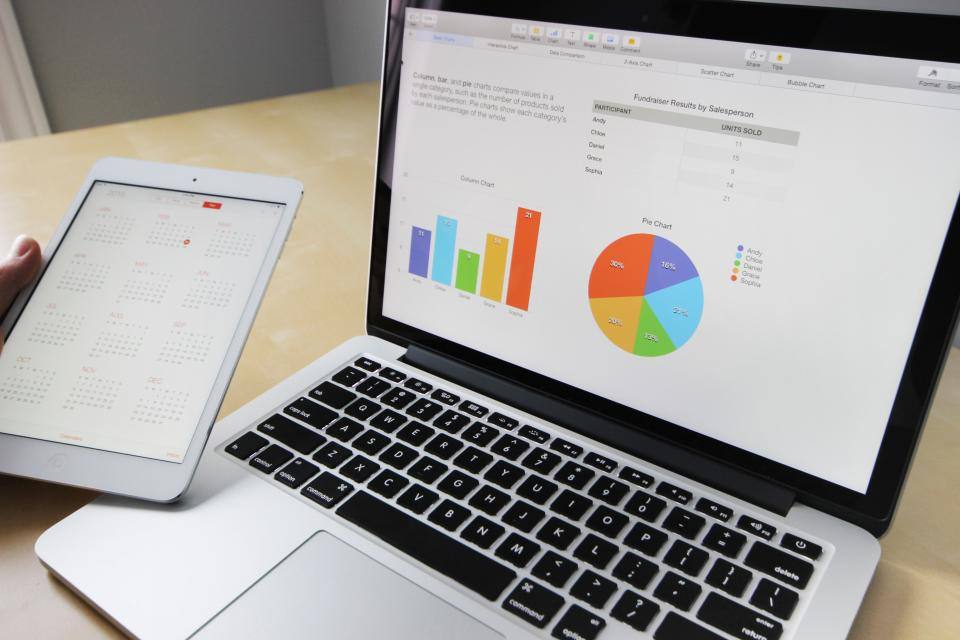
Featured image: Business Working by Marc Chouinard via Stocksnap, CC0 (public domain).